Scan a document to PDF on iPhone
Your iPhone can already scan paper, and there are three good ways to do it: the Notes app, the Files app, or an app made for scanning. Here are all three, and when each one fits.
Route 1: the Notes app (built in)
Free and already on your iPhone. These are Apple's own steps, from Apple Support: How to scan documents on your iPhone or iPad (checked 20 November 2026).
- Open Notes and select a note or create a new one.
- Tap the Attachment button, then tap Scan Documents.
- Point the camera at the document. In Auto mode it scans by itself; otherwise tap the Shutter button or press a Volume button, drag the corners to fit the page, then tap Keep Scan.
- Tap Done, or add more pages to the same scan.
Route 2: the Files app (built in)
Same camera scanner, but the scan goes straight into a folder. Steps from the same Apple Support: How to scan documents on your iPhone or iPad.
- In the Files app, tap the More button, then tap Scan Documents.
- Scan the page the same way: Auto mode, or the Shutter button, then drag the corners and tap Keep Scan.
- Tap Done, choose a location, then tap Save.
Route 3: Easy Scan
Easy Scan is a free scanner app for iPhone and iPad with in-app purchases. Its app page lists edge detection, perspective correction, multi-page scans, OCR text recognition and cloud saving. Below, the pictures show the part we captured: turning a photo of a page into a PDF and sharing it.
Get Easy Scan on the App Store- Open Easy Scan. The Documents tab lists your scans. The tab bar has Documents, Settings and Scan.
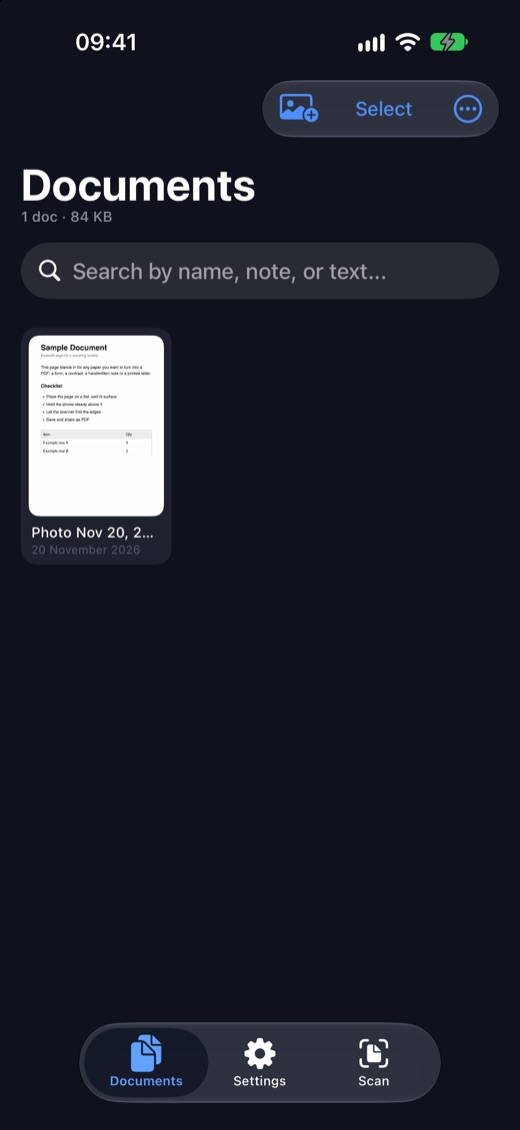
The Documents list. - Tap the photo icon and pick the page. Already have a photo of the page? Tap the photo icon at the top left and choose it in the iPhone photo picker (up to 20 photos at once).
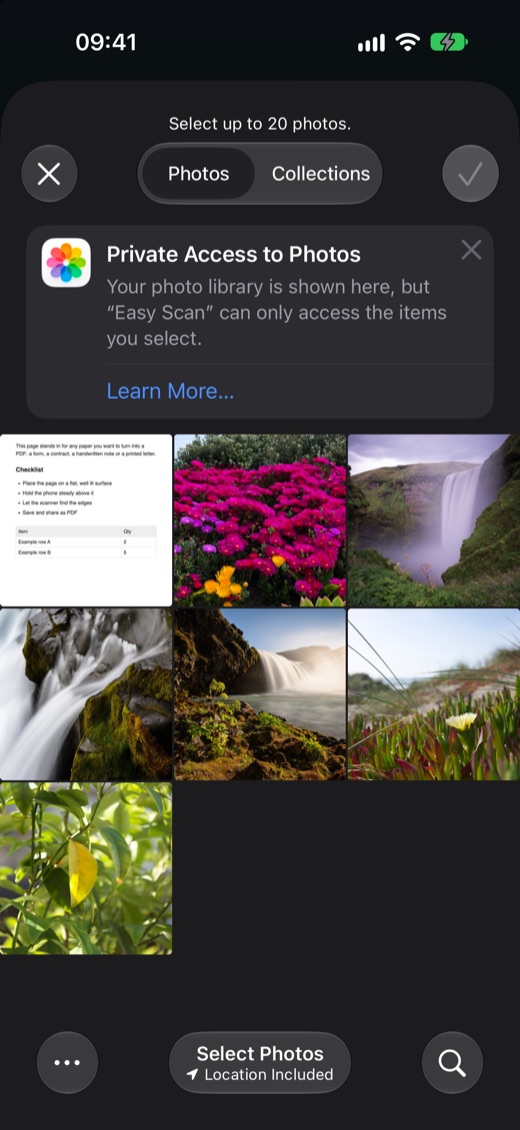
Choosing the page in the photo picker. - Check the PDF. Easy Scan builds the PDF and opens it, with the page count and file size shown and a field to add a note.
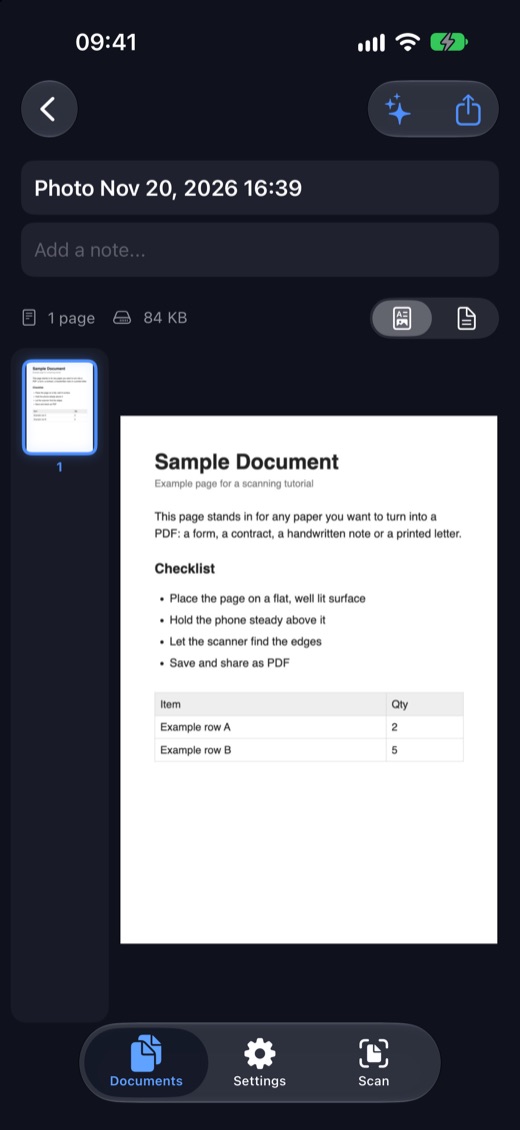
The finished one-page PDF. - Share or save it. Tap the share button. The file is named with a .pdf ending, and the iPhone share sheet offers Copy, Markup, Print and Save to Files.
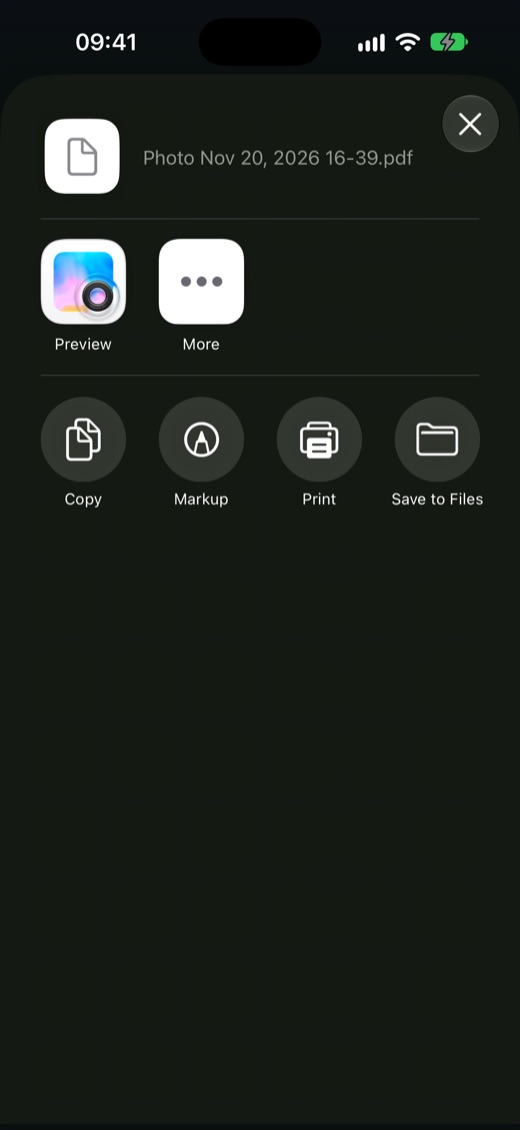
The share sheet with Save to Files.
The Easy Scan pictures were taken in the iPhone simulator, which has no camera, so they use the photo import. The saved PDF and the share sheet are the app's real output. Apple's Notes and Files steps above are quoted from Apple's page and not screenshotted by us.
Which one should you use?
| Notes | Files | Easy Scan | |
|---|---|---|---|
| Install | Built in | Built in | App Store download |
| Price | Free | Free | Free, with in-app purchases |
| Where the scan goes | Into a note | Into a folder you choose | Into the app's Documents list |
| Search by name, note or text | Not covered by Apple's page | Not covered by Apple's page | Yes: the search field reads "Search by name, note, or text..." |
| Import an existing photo | Not covered by Apple's page | Not covered by Apple's page | Yes, up to 20 photos at a time |
Use Notes for a quick one-off scan you want to keep with other notes. Use Files when the scan should land in a particular folder right away. Try Easy Scan if you scan often and want your scans in one searchable list, or if you start from photos. For a single page now and then, the built-in routes are enough and cost nothing.
FAQ
How do I scan a document to PDF on iPhone for free?
Use the built-in scanner in Notes or Files. Open Notes, tap the Attachment button, then Scan Documents. Or open Files, tap the More button, then Scan Documents. Both come from Apple's steps linked above.
Do I need an app to scan on iPhone?
No. The Notes and Files apps can scan documents with the camera. A scanner app like Easy Scan adds a searchable library of scans and photo import.
Can I scan several pages into one document?
Yes. In Notes and Files, tap Done or add additional scans to the same document, as Apple describes. Easy Scan also supports multi-page scans.
Can I turn a photo into a PDF?
Yes. In Easy Scan, tap the photo icon, pick the photo, and the app builds a PDF you can share or save to Files. For many photos at once, see JPEG to PDF on iPhone.
Is Easy Scan free?
It is free to download and has in-app purchases. Check the App Store page for the current plans.
Related
More on Easy Scan: Easy Scan app page. Converting images instead of paper: JPEG to PDF on iPhone · PNG to PDF on iPhone